
How to Adjust Waveform Height for Better Subtitle Timing in Noisy Audio
Designed for creators. Free to use. Ready to scale.
Built by subtitlers. Powered by freedom!
Introduction
When working on subtitle timing, background noise, music, overlapping voices, or poor audio quality can make it difficult to identify where speech actually starts and ends.
Large waveform peaks caused by noise often hide subtle speech details, making Time In and Time Out placement less precise. Adjusting waveform display settings can help create a cleaner visual representation of the audio and make subtitle synchronization easier.
Sublandia Editor allows you to customize waveform visibility by changing the Bar Height setting. Smaller or larger waveform bars can improve readability depending on the audio characteristics of your project.
Why Adjust Waveform Height?
Changing waveform height can help:
- Improve visibility of speech patterns
- Reduce visual clutter caused by noisy audio
- Make dialogue start and end points easier to identify
- Improve subtitle timing accuracy
- Create a more comfortable editing workflow
Different audio sources often require different settings. A podcast recording, movie scene, interview, or user-generated content may all benefit from different waveform display sizes.
 Steps to Change Waveform Height in Sublandia Editor
1. Open or Create a Project
Open an existing subtitle project or create a new one in Sublandia Editor.

2. Open Settings
Click the Settings button located in the upper-right corner of the screen.

3. Open Editor Options
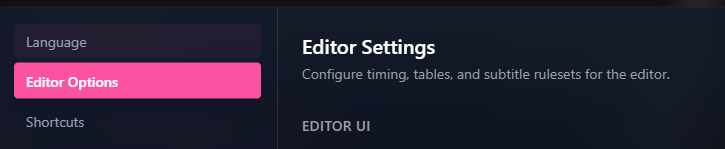
Inside the settings panel, select Editor Options from the left-side menu.
4. Adjust Waveform Bar Height
Locate:
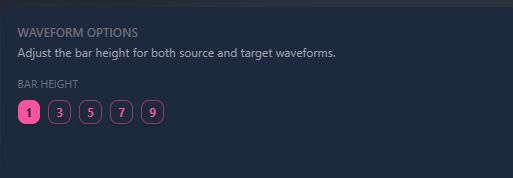
Editor UI → Waveform Options
Find the Bar Height setting and choose one of the available values:
- 1
- 3
- 5
- 7
- 9
Each value changes the visual appearance of waveform bars.
General guidance:
- 1–3: Useful for extremely noisy audio where large peaks hide speech details
- 5: Balanced setting suitable for many projects
- 7–9: Helpful when working with quieter recordings and softer speech
5. Click OK
Click OK to save and apply the new settings.
Important Note
The selected Bar Height setting applies to both:
- Source waveform
- Target waveform
Changes will affect waveform visualization across the editor interface.
Pro Tip
If speech boundaries are difficult to identify, start with a lower waveform height such as 3, then gradually increase it until speech patterns become easier to read.
There is no universal "best" setting. The ideal waveform height depends on:
- Background noise level
- Recording quality
- Number of speakers
- Music and sound effects
- Personal editing preference
Many professional subtitle editors switch waveform settings between projects instead of keeping a single default value.
 FAQ
FAQ
Does changing waveform height modify the audio itself?
No. Waveform height only changes how the audio is displayed visually inside the editor. The original audio remains unchanged.
Will changing Bar Height affect subtitle timing data?
No. Existing subtitle timings and synchronization remain unchanged. Only the visual waveform appearance is modified.
What is the best waveform height setting for noisy audio?
There is no single correct value. For heavy background noise, many editors prefer lower settings such as 1 or 3 because they reduce visual clutter and make speech peaks easier to identify.
Why can't I clearly see speech boundaries in the waveform?
Several factors can reduce waveform clarity:
- Loud background music
- Environmental noise
- Multiple speakers talking simultaneously
- Poor microphone quality
- Audio compression artifacts
Adjusting waveform height can help make speech patterns easier to recognize.
Does the setting apply separately to Source and Target waveforms?
No. The selected Bar Height value is automatically applied to both Source and Target waveforms.
Can I change waveform height while working on a project?
Yes. You can modify waveform settings at any point during subtitle editing without affecting project content or timing information.
Something on your mind?
Contact us
We are social


