
How to Open a Project in Sublandia Editor
Designed for creators. Free to use. Ready to scale.
Built by subtitlers. Powered by freedom!
Introduction
Opening an existing project in Sublandia Editor allows you to continue working on your subtitle files quickly and efficiently. Access your Dashboard, select the project from the list, and pick up right where you left off, with all project settings and export options intact.
 How to Open an Existing Project
in Sublandia Editor – Step-by-Step Guide
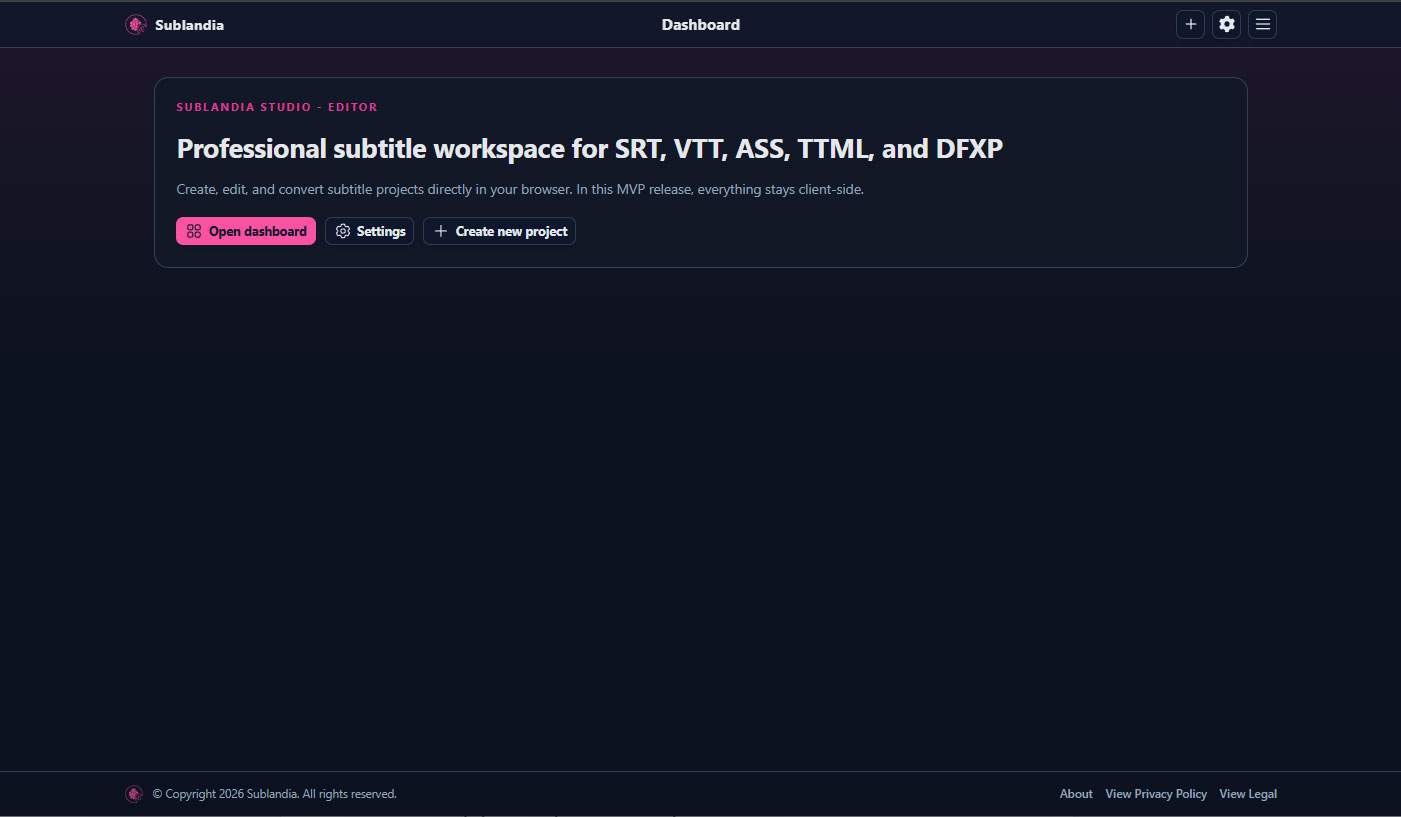
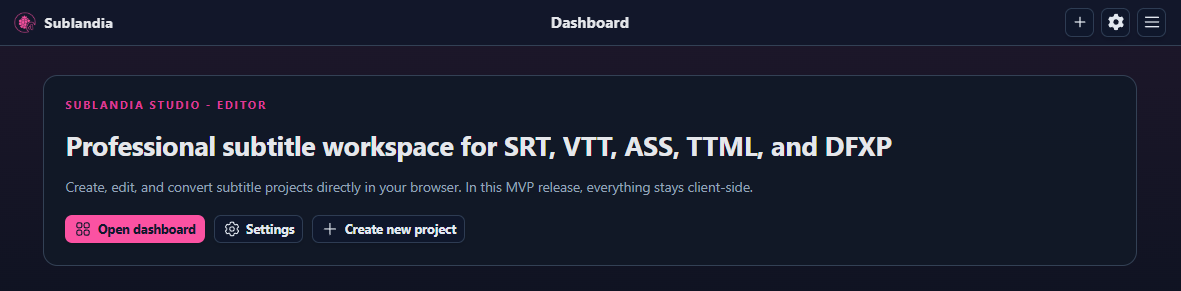
1. Open the Sublandia Editor Dashboard
Go to the Sublandia Editor web page to access the Dashboard.
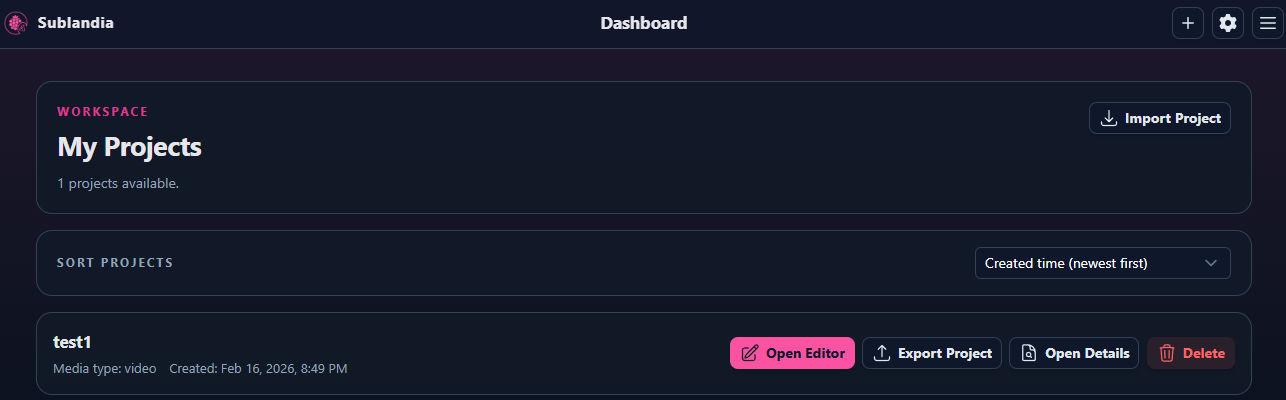
2. Select Your Project from the List
Choose the project you want to open from the project list. Click on Open Editor to continue working on your subtitle files.
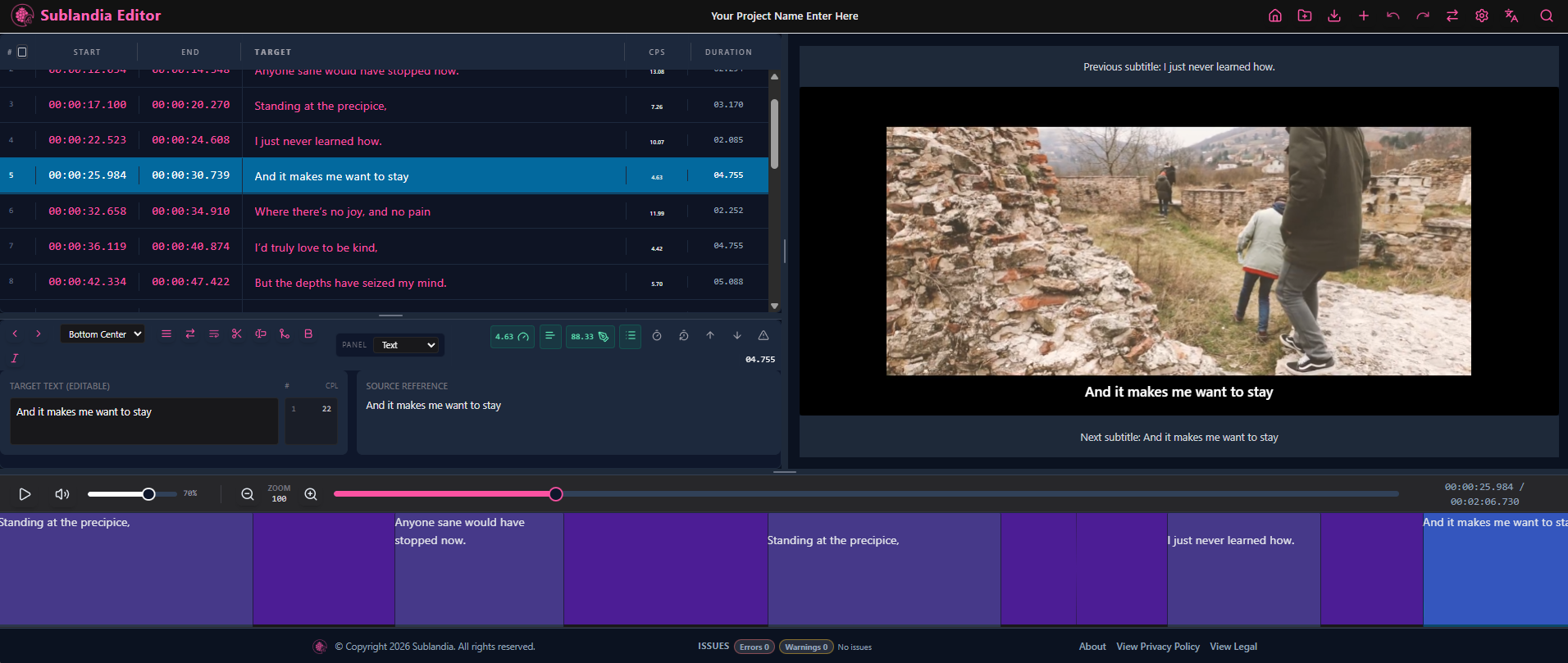
3. This Is How Your Project Should Look in Sublandia Editor
After clicking Open Editor, your project opens inside Sublandia Editor. At this stage, the editor interface displays the video preview, subtitle timeline, project settings, and editing tools needed for subtitle creation and timing adjustments.
 FAQ
FAQ
Where can I find my existing projects in Sublandia Editor?
All existing projects are available on the Dashboard page in Sublandia Editor. You will see a project list where you can select any previously created subtitle project.
How do I open a subtitle project in Sublandia Editor?
To open a subtitle project, go to the Dashboard and find the project name from the list. Click on Open Editor and the project will open in the editor with all subtitle data, timing, and settings preserved.
Can I continue editing subtitles after reopening a project?
Yes. When you open an existing project in Sublandia Editor, all subtitle lines, timing adjustments, export settings, and selected subtitle rules remain available for further editing.
Does Sublandia Editor save project settings automatically?
Yes. When you open an existing project in Sublandia Editor, all subtitle lines, timing adjustments, export settings, and selected subtitle rules remain available for further editing.
Is opening a project in Sublandia Editor suitable for professional subtitle workflows?
Yes. Sublandia Editor is designed for professional subtitle production, allowing quick access to saved projects while preserving all technical subtitle parameters.
Something on your mind?
Contact us
We are social


