
How to Add a New Subtitle Line in Sublandia Editor
Designed for creators. Free to use. Ready to scale.
Built by subtitlers. Powered by freedom!
Introduction
Adding a new subtitle line in Sublandia Editor is fast and flexible. You can create subtitles directly on the waveform, define subtitle timing precisely, and enter subtitle text using mouse actions, toolbar controls, or keyboard shortcuts.
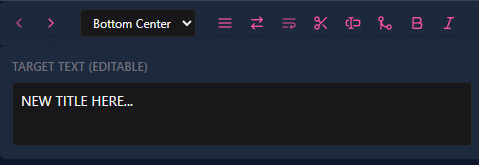
 Steps to Add a New Subtitle Line in Sublandia Editor
1. Open Your Project
Open an existing subtitle project in Sublandia Editor.
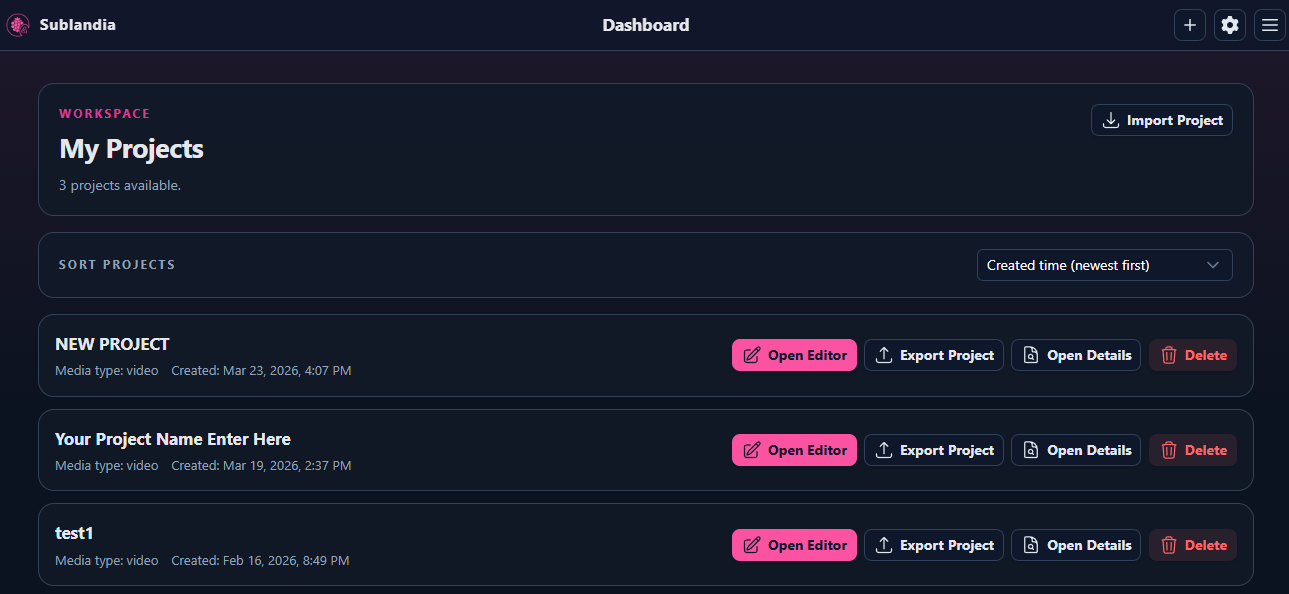
2. Create a New Subtitle on the Waveform
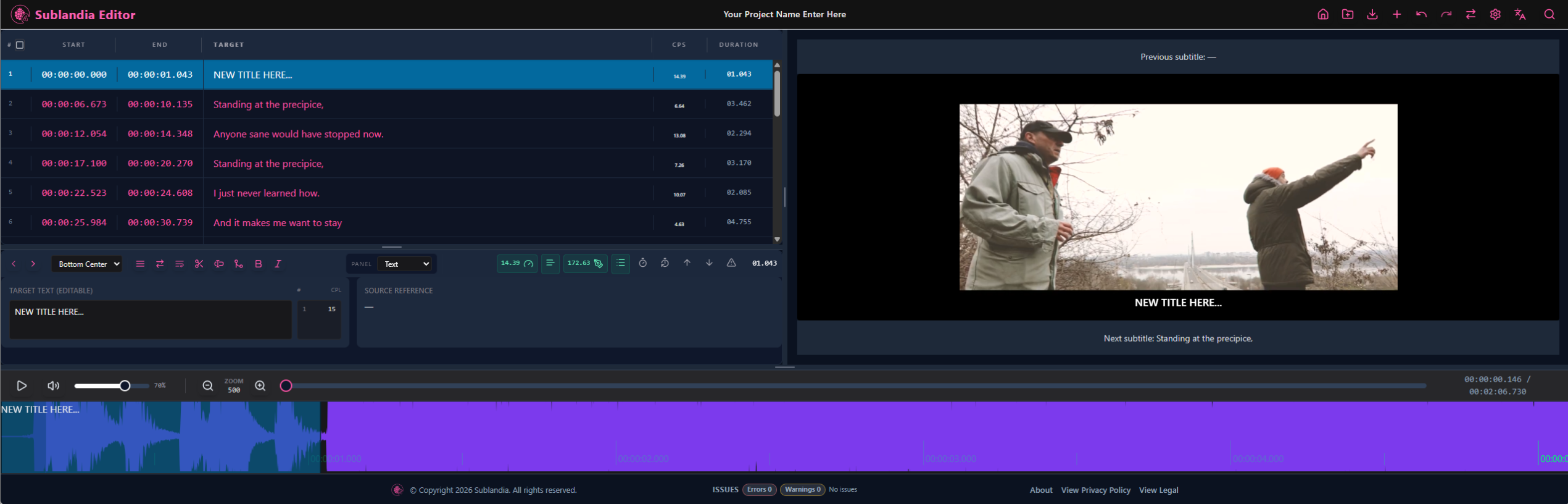
Place the cursor on the waveform at the desired subtitle start position. Then choose one of these options:
- Option A: Click the + button in the top-right menu
- Option B: Double-click with the left mouse button to create a short subtitle block, then drag it to the desired duration
- Option C: Use shortcut Alt + K

SEO Tip
For precise subtitle editing, create subtitle lines directly on the waveform first, then adjust start and end timing afterward.
 FAQ
FAQ
How do I add a new subtitle line in Sublandia Editor?
To add a new subtitle line, open your project, place the cursor on the waveform at the desired start position, and create a subtitle using the + button, double-click, or the Alt + K shortcut.
Can I create subtitles directly on the waveform in Sublandia Editor?
Yes. Sublandia Editor allows you to create subtitle lines directly on the waveform, making it easy to define subtitle timing visually and accurately.
What is the fastest way to insert a subtitle line?
The fastest method is using the keyboard shortcut Alt + K, which instantly creates a new subtitle line at the cursor position.
Can I add subtitle text immediately after creating a subtitle line?
Yes. Once the subtitle line is created, you can immediately type the subtitle text in the subtitle editor field.
Is waveform editing better than manual timing entry?
Waveform editing is often faster and more accurate because subtitle timing can be aligned visually with speech and audio peaks.
Can subtitle timing be changed later after adding a subtitle line?
Yes. Subtitle timing can always be adjusted later by moving the subtitle block or editing start and end values manually.
Does Sublandia Editor support professional subtitle timing workflows?
Yes. Sublandia Editor is designed for professional subtitle production and supports precise waveform-based timing, frame alignment, and advanced subtitle editing tools.
Can beginners easily add subtitle lines in Sublandia Editor?
Yes. Although Sublandia Editor is professional subtitle software, adding subtitle lines is simple thanks to intuitive controls and keyboard shortcuts.
Which method is most accurate for creating subtitle timing?
Creating subtitle lines on the waveform is the most accurate method because it allows direct synchronization with audio and speech timing.
Something on your mind?
Contact us
We are social


